Create and Publish Social Media Posts From Claude
You can now go from “I need a launch post” to a scheduled Instagram post with a generated photo without opening a single other app. You talk to Claude. Claude asks fal.ai or Higgsfield for the image or the video. Claude hands the finished file to PostSider, and PostSider publishes it to your social media accounts at the right time.
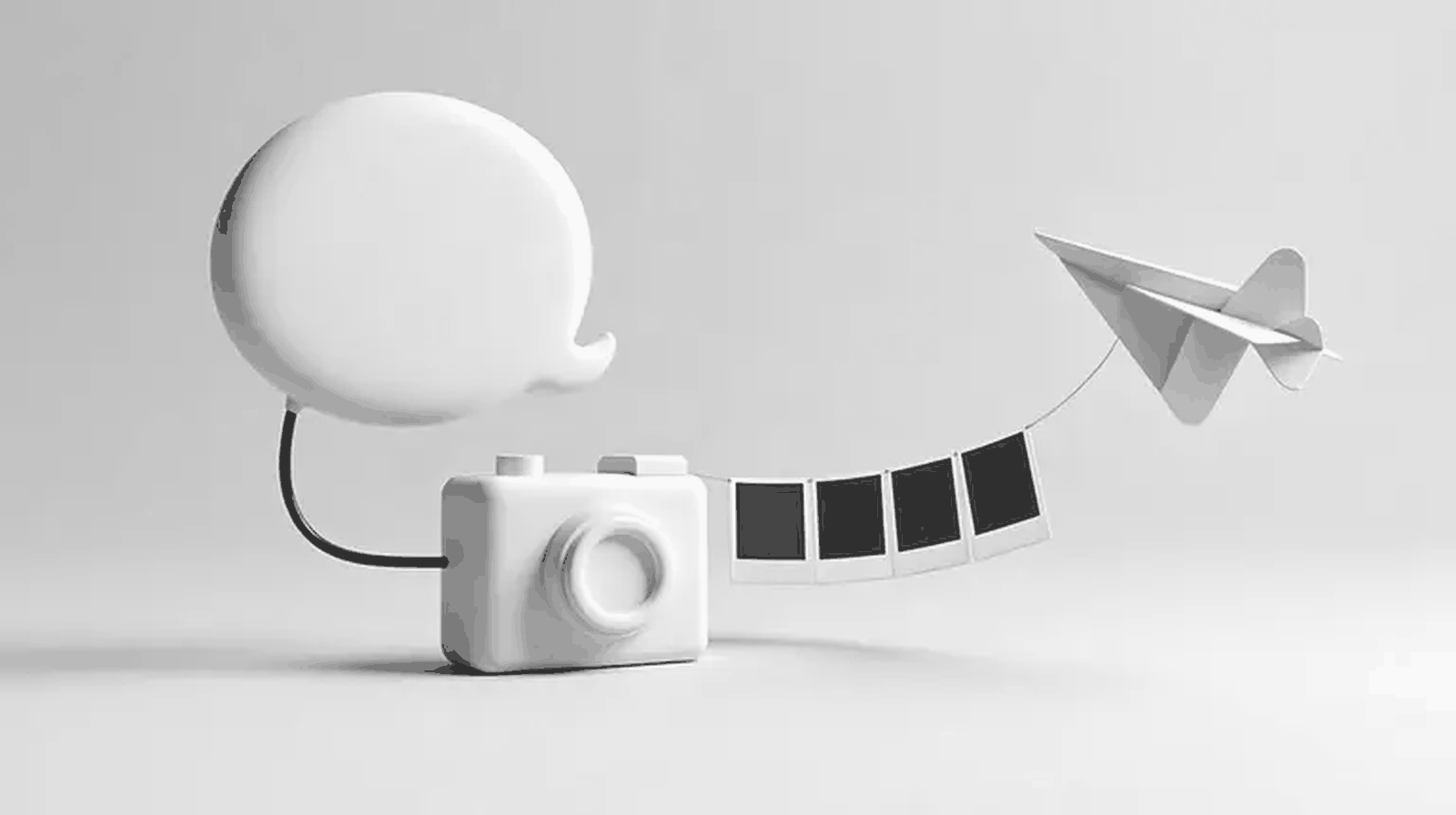
The cover of this article and the coffee photo further down were generated exactly this way, through the fal MCP server from inside an agent session, while I was writing. This guide is what I learned doing it: the setup, the full flow, the costs, and the three places where it breaks if you are not careful.
Three connectors, one chat: who does what
Claude is the brain, the generator is the studio, and PostSider is the delivery truck. Each one does a single job, and the chat is where they meet.
That split matters because each tool is good at a different thing. Claude is good at understanding what you want and writing the caption. fal.ai and Higgsfield are good at turning a text prompt into pixels. Neither of them knows anything about Instagram’s required settings, TikTok’s privacy options or your posting queue. PostSider does, because publishing is the only thing it does.
The dashed line is the important one. The generator does not send the image to Instagram. It sends a link back to Claude, and Claude passes that link to PostSider. Everything that touches the social networks goes through PostSider, which keeps the access tokens, the queue and the per-platform rules in one place.
Connect all three in about 10 minutes
You add three remote MCP servers as connectors. None of them needs a local install, and each one signs you in through its own browser login.
In the Claude app, open Customize, then Connectors, choose Add custom connector, paste the URL, and finish the sign-in window. If a connector does not show up in a conversation, click the + button under the chat box, open Connectors and switch it on for that chat.
| Connector | URL for the Claude app | What you sign in with |
|---|---|---|
| PostSider | https://mcp.postsider.com/mcp | Your PostSider account (OAuth) |
| fal.ai | https://mcp.fal.ai/mcp-relay | Your fal account |
| Higgsfield | https://mcp.higgsfield.ai/mcp | Your Higgsfield account |
You only need one of the two generators. The flow below is identical with either.
If you work in Claude Code instead, the same servers are one command each:
# PostSider: browser OAuth on first use
claude mcp add --transport http postsider https://mcp.postsider.com/mcp

# Higgsfield: browser sign-in on first use
claude mcp add --transport http higgsfield https://mcp.higgsfield.ai/mcp

# fal.ai: the official hosted fal MCP server, browser sign-in
claude mcp add --transport http fal https://mcp.fal.ai/mcp-relay
These URLs come from each vendor’s own setup pages (fal MCP docs, Higgsfield’s MCP post, and our MCP scheduling guide). They change faster than blog posts do, so if one fails, check the vendor page first.
Before you generate anything, run one boring test: ask Claude to “list my PostSider channels”. If it answers with your real accounts, the publishing side works. Then ask fal or Higgsfield for one small test image. Only then combine them.
fal also documents a key-based endpoint, https://mcp.fal.ai/mcp with your fal API key in an Authorization: Bearer header. You only need it for agents that run headless and cannot open a browser to sign in. In the Claude app and in Claude Code, the sign-in route above is simpler and keeps the key out of your config.
The full flow, from one sentence to a scheduled post
Every post goes through the same seven steps: brief, generate, review, store, check the channel rules, create the post, read it back. Claude runs most of them, you approve two of them.
Here is what happens at each step, in plain words.
1. Brief. You tell Claude what the post is for, which networks, and roughly when. One or two sentences is enough. Claude turns that into a prompt for the generator and a caption per network.
2. Generate. Claude calls the generator. With fal.ai that is a model run, for example fal-ai/flux/dev for a still image or a Kling or Veo model for a short clip. With Higgsfield it is one of the models on your plan. Either way, what comes back is a URL to a file, plus its size and type.
3. Review. Claude shows you the result in the chat. This is your first approval point. Ask for two or three variants and pick one, or ask for a change (“more empty space at the top for the text”, “make it vertical”). Regenerating costs cents. Fixing a published post costs more.
4. Store. Claude calls postsider_upload_media_from_url with the file link. PostSider downloads the file into your media library and returns a media object with an id and a path. The next section explains why this step is not optional.
5. Channel rules. For any channel it has not posted to before, Claude calls postsider_get_channel_rules. That returns the maximum text length and the settings the platform requires, so the post is right on the first try.
6. Draft or schedule. Claude calls postsider_create_post with the caption per channel and the stored media in images. The type decides what happens: draft saves it, schedule books it for a date, now publishes immediately. If you want the next open slot in your queue instead of a fixed time, Claude asks postsider_find_slot first. This is your second approval point: the channel, the text and the time.
7. Read back. Claude calls postsider_get_post with the ID it got back and reports what was actually saved. A confident “Done, it’s scheduled!” in the chat is not proof. The saved post is.
What a real session looks like
Below is an illustrative session for a small coffee brand launching a new dripper. The wording is mine, the tool calls are the real PostSider and fal tool names, and the photo is the actual image fal returned when I ran this prompt.
And this is the image fal.ai returned for that prompt, unedited apart from compression for this page:
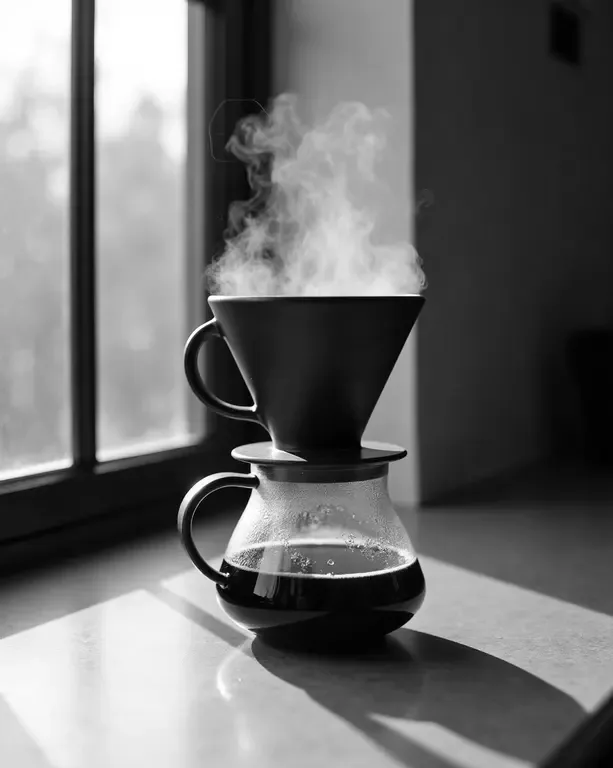
Two details from that real run are worth knowing. I asked for 1080x1350, and the file came back at 1072x1344. The model rounds dimensions to multiples of 16. It is still a 4:5 portrait and Instagram is happy with it, but if your workflow checks exact pixel sizes, it will fail. The second detail: generation took 5.8 seconds. The slow part of this whole flow is you deciding which variant you like, which is how it should be.
Store the file in PostSider before it goes into a post
Generator links are delivery links, not storage. Always run postsider_upload_media_from_url first and attach the returned id and path, never the raw generator URL.
Here is the failure this prevents. You generate an image on Monday and schedule the post for next Tuesday. fal lets you set an expiry on generated files, and every result I got back came with the note “Source URLs may expire”. If the post pointed at that link and the file is gone on Tuesday, the publish fails, at a time you are not watching.
Once the file is in PostSider’s media library, the post points at PostSider’s copy. The generator can delete its file the next minute and nothing changes.
The file rules PostSider applies when it downloads:
| Media | Formats | Max size | Note |
|---|---|---|---|
| Image | JPEG, PNG, GIF, WebP, AVIF, TIFF | 10 MB | The link must serve the file itself, not a web page |
| Video | MP4 | 500 MB | Works on every network |
| Video | MOV, WebM | TikTok only. Ask the generator for MP4 or convert first |
For a quick single-image post, postsider_create_post also accepts a mediaUrl shortcut that stores the file and attaches it to every channel in one call. I still prefer the separate upload step, because the media object can then be reused in a second post or a different crop later.
Every network wants different settings
The same image cannot just be thrown at five networks. Each platform has required fields, and postsider_get_channel_rules tells Claude what they are before it creates the post.
| Network | What the post needs besides the caption |
|---|---|
post_type: post or story. Media is required | |
| TikTok | privacy_level, duet/stitch/comment switches, autoAddMusic, and video |
| YouTube | title and visibility: public, private or unlisted |
| X | who_can_reply_post (for example everyone or following) |
| No extra required field for a basic image post |
One warning about TikTok. PostSider posts to TikTok with direct posting, so when a scheduled TikTok post fires, it goes live. There is no TikTok inbox where you get a second look. The review has to happen before it is scheduled, in PostSider.
Sizes matter too. Ask the generator for the right shape from the start instead of cropping later: 4:5 portrait (1080x1350) for Instagram feed, 9:16 (1080x1920) for Reels, TikTok and Shorts, and a landscape or square image for LinkedIn and X. The full table is in my social media image sizes cheat sheet, and video specs are in the video specs guide.
A post costs cents, a video costs the most
One generated image on fal.ai costs a few cents. A five-second video clip costs roughly ten times more. On Higgsfield the same work is paid in plan credits instead of dollars per run.
These are fal’s list prices as I checked them through the fal MCP server on 15 October 2026. I turned them into the cost of one typical social media asset:
The underlying rates: FLUX dev is $0.025 per megapixel, FLUX Pro 1.1 is $0.04 per megapixel, Nano Banana is $0.0398 per image, Kling 2.1 standard image-to-video is $0.056 per second and Veo 3 Fast is $0.15 per second. Prices move, so ask the fal connector for current pricing before a big batch. It can look them up for you.
So a month of daily image posts with three variants each is about 90 images, around $3.30 with FLUX dev. The generation bill is rarely the problem. The problem is spending it on images that never get approved, which is why I keep the variant count low and the review step mandatory.
fal.ai or Higgsfield: pick by how you work
Both plug into the same PostSider flow, because PostSider only cares about the finished file. Choose based on how you pay and what you make most.
| fal.ai | Higgsfield | |
|---|---|---|
| How you pay | Per run, in dollars, from your fal balance | Credits from your Higgsfield plan |
| Sign-in | Official hosted fal MCP, fal account sign-in | Official hosted Higgsfield MCP, account sign-in |
| Catalog | Very large, images, video, audio, upscalers | 30+ curated image and video models |
| Best for | Developers, automation, exact model control | Creators who already work in Higgsfield, video-first |
My take: if you write code or want a scheduled pipeline later, start with fal.ai. Pay-per-run pricing makes costs easy to predict and the same models are available over a normal API when you outgrow the chat. If your team already lives in Higgsfield and mostly makes short video, use Higgsfield and do not add a second bill.
Where this breaks, and where I keep a human
The generator is the least risky part. The risks are text inside images, brand drift and publishing too fast.
- Text in images. Image models still misspell words. Keep text out of the image and put it in the caption. If you need a headline on the image, check every letter at the review step.
- Brand drift. Ten images from ten fresh prompts look like ten different brands. Write your look into one reusable sentence (“black and white, soft window light, concrete surfaces, lots of empty space”) and ask Claude to start every prompt with it.
- Wrong shape. A 16:9 image in a 4:5 Instagram slot gets cropped by the platform. Ask for the target ratio in the generation step.
- Publishing too fast. Use
draftuntil you trust the setup, and for client accounts put the post through an approval step before it is scheduled. - Retries that double-post. If a create call times out, Claude may try again. Ask it to pass an
idempotencyKeyso a retry returns the original post instead of creating a second one.
I wrote more about the review side in human-in-the-loop patterns that do not become a bottleneck. The short version: approve the media and the schedule, and let the agent do the plumbing.
Copy these prompts
Start with these three prompts. Paste them into a Claude chat with the connectors switched on and edit the parts in capitals.
One image post, draft only:
Create a launch post for PRODUCT for Instagram and LinkedIn.
Generate 2 image options with fal.ai at 1080x1350, black and white,
soft window light, no text in the image. Show them to me and wait.
After I pick one, store it in PostSider, check the channel rules,
and create both posts as drafts for THURSDAY 08:30 my time.
Then read the drafts back and tell me what was saved.
A short video for TikTok and Reels:
Make a 5 second vertical 9:16 video of PRODUCT with Higgsfield.
Output MP4. Show me the result before anything else.
If I approve, store it in PostSider, check the TikTok and
Instagram rules, and create drafts with these captions: CAPTIONS.
TikTok privacy: public to everyone. Do not schedule yet.
Fill next week’s queue:
Plan 5 posts for next week about TOPIC for LinkedIn.
For each, generate one landscape image with fal.ai in this style: STYLE.
Show me all 5 images in one message and let me reject any.
For the approved ones, store the media, find the next free slot
in the LinkedIn queue for each, and create them as drafts.
Start with one draft
Connect the three servers, generate one image, and get one draft into your PostSider calendar. Once that works end to end, everything else in this guide is a variation of it.
Not using Claude? The same flow works in other agents, with a different setup step: ChatGPT, Grok, Cursor, Hermes Agent and OpenClaw.
If you do not have a PostSider account yet, you can start for free and connect your first social media account in a couple of minutes. The tool reference for the agent side lives in the PostSider MCP docs.
Frequently asked questions
Can Claude publish social media posts with AI-generated images?
Yes, with two connectors. A media connector such as fal.ai or Higgsfield generates the image or video and returns a file link. The PostSider connector stores that file in your media library and creates the post on your connected social media accounts as a draft, a scheduled post or an immediate publish.
Should I use fal.ai or Higgsfield for social media content?
Both work with the same PostSider flow, because PostSider only needs the finished file. fal.ai has its own hosted MCP server with a very large model catalog and pay per run pricing, which suits developers and anyone who wants exact model control. Higgsfield signs in with your Higgsfield account and spends plan credits, which suits creators who already work there and mainly want video.
Why does the generated file have to be uploaded to PostSider first?
Generator links are temporary delivery URLs, and a post can sit in the queue for days before it publishes. PostSider downloads the file into its own media library and the post references that stored copy, so the post does not depend on the generator's link still working at publish time.
Which file formats does PostSider accept from image and video generators?
Images in JPEG, PNG, GIF, WebP, AVIF or TIFF up to 10 MB, and video as MP4 up to 500 MB. MOV and WebM only work on TikTok, so ask the generator for MP4 or convert before posting anywhere else.
Is it safe to let Claude publish without my approval?
Start with drafts. Ask Claude to create every post as a PostSider draft, review the visuals and captions in the PostSider calendar, then schedule. Be extra careful with TikTok: once a TikTok post fires it goes live directly, there is no TikTok-side inbox step to catch a mistake.