ChatGPT: Create and Publish Social Media Posts
ChatGPT can take you from “we launch on Thursday” to a drafted Instagram and LinkedIn post with a generated photo, inside one conversation. It does not publish anything by itself, though. It needs two connected apps: a media generator (fal.ai or Higgsfield) and a publishing tool. I built PostSider to be that publishing tool, so this guide shows the setup with it.
If you read my Claude version of this guide, the flow is identical. What is different in ChatGPT is how you connect the apps, who is allowed to, and one trap with ChatGPT’s own image generation.
ChatGPT is the brain, not the delivery truck
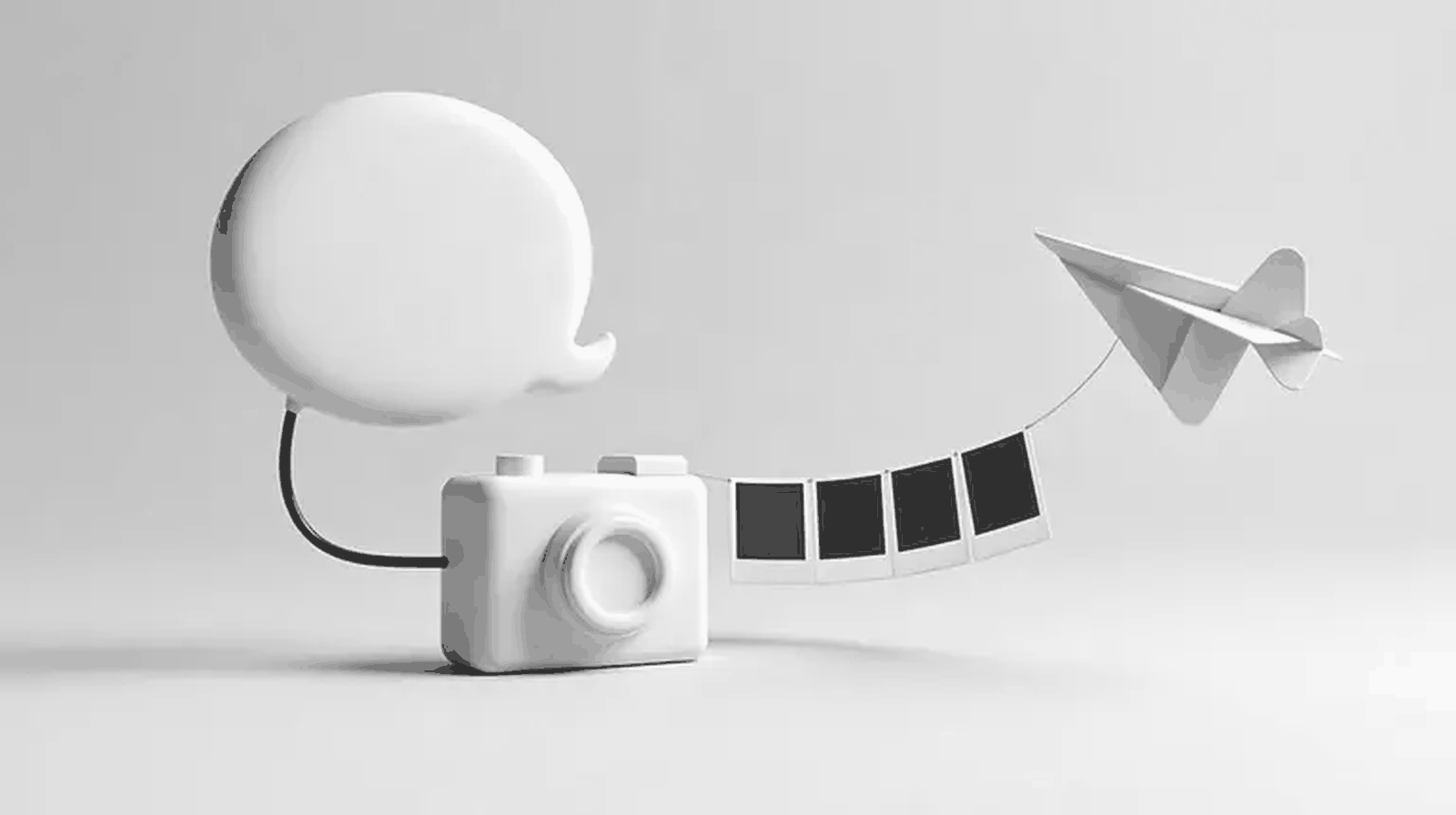
ChatGPT writes the captions and decides which tool to call. The generator renders the media. PostSider holds the social media accounts, the queue and the per-network rules.
The dashed arrow is a link, not a file. The generator does not post to Instagram. It hands ChatGPT a URL, ChatGPT hands that URL to PostSider, and PostSider does the rest.
Connect the apps in developer mode
PostSider and fal.ai go in as custom MCP apps with their server URL. Higgsfield is simpler: it has an official plugin in ChatGPT’s directory.
Step 1: turn on developer mode. In ChatGPT on the web, open Settings, then Apps & Connectors (some accounts show it as Plugins), then Advanced, and switch on Developer mode. On Business and Enterprise/Edu workspaces an admin has to allow it first under the workspace permissions, according to OpenAI’s help article. Custom apps run on the web, not in the mobile apps.
Step 2: create the PostSider app. Choose Create app, give it a name, paste the server URL and leave authentication on OAuth. A PostSider sign-in window opens. Approve it, then wait for ChatGPT to finish scanning the tools.
Step 3: add a generator. For Higgsfield, open the app directory, find the official Higgsfield plugin and sign in (Higgsfield’s help center describes it). For fal.ai, create a second custom app with fal’s hosted MCP URL.
| App | How you add it | URL |
|---|---|---|
| PostSider | Create app (developer mode), OAuth | https://mcp.postsider.com/mcp |
| fal.ai | Create app (developer mode), sign in to fal | https://mcp.fal.ai/mcp-relay |
| Higgsfield | Official plugin from the directory | none to paste |
Step 4: switch the apps on in the chat. In a new conversation, open the + menu, choose developer mode or the apps list, and enable the apps you want for this chat. Then run a read-only test: “List my PostSider channels.” Real account names back means the connection works.
If ChatGPT’s login window bounces you back to the sign-in page in a loop, the OAuth handoff did not finish. Remove the app, create it again, and complete the sign-in in one go without switching tabs.
The trap: ChatGPT’s own images are not a link
PostSider needs a file it can download from a public HTTPS address. fal.ai and Higgsfield return exactly that. Images ChatGPT draws inside the conversation do not come with a link PostSider can fetch.
This is the most common reason the flow breaks in ChatGPT. You ask for a picture, ChatGPT happily draws one with its built-in image model, and then the publishing step has nothing to download. Two ways around it:
- Ask for the generator by name. “Generate it with fal.ai” or “make it with Higgsfield” makes ChatGPT call the connected app, which returns a URL.
- Use a native image anyway. Download it, upload it in the PostSider app, and ask ChatGPT to attach it from your media library (
postsider_list_medialists what is there).
Once PostSider has the file, it keeps its own copy. That matters because generator links are temporary: every fal result I pulled while writing these guides came with the note that source URLs may expire. A post scheduled for next week must not depend on that link.
What one session looks like
Here is an illustrative session for a small bakery announcing a weekend special. The wording is mine; the tool names are the real PostSider tools.
Behind that short exchange, ChatGPT runs the same seven steps as any agent:
- Brief: you describe the post.
- Generate: Higgsfield or fal returns a file URL.
- Review: you look at the image in the chat and approve or ask for a redo.
- Store:
postsider_upload_media_from_urlcopies the file into your PostSider media library and returns anidandpath. - Rules:
postsider_get_channel_rulestells ChatGPT what each network needs (Instagram wants apost_type, TikTok a privacy level, YouTube a title). - Create:
postsider_create_postwithtypeset todraft,scheduleornow. This is where ChatGPT shows its confirmation. - Read back:
postsider_get_postreports what was actually saved.
The Claude guide has the full diagram of these steps, the file format table and a cost chart for fal.ai models.
Let the confirmations work for you
ChatGPT treats any tool that can change data as a write action and asks before running it. Do not turn that into a reflex click.
When the confirmation appears, read three things: which channel, which date, and which type. draft is safe. schedule puts the post in the queue. now publishes immediately. If you see now and you did not ask for it, deny and say so.
Two more habits I recommend:
- Say “drafts only” in the first message. ChatGPT then has no reason to pick
scheduleornow, and the real approval happens in the PostSider calendar where you see the actual preview. - Be stricter with TikTok. PostSider publishes to TikTok with direct posting, so a scheduled TikTok post goes live when it fires. There is no TikTok inbox where you get a second look.
For teams, PostSider’s approval workflow adds one more gate between a draft and the queue. I wrote about it in the client approval workflow.
Prompts that work in ChatGPT
ChatGPT follows tool instructions best when you name the app and the post type explicitly.
Use Higgsfield to make a square 1:1 photo of PRODUCT, warm natural light,
no text in the image. Show it to me first.
After I approve, use PostSider: store the image, check the Instagram and
Facebook rules, and create both posts as DRAFTS for FRIDAY 07:00 my time.
Read them back and list what was saved.
With fal.ai, create 3 portrait 1080x1350 options for this post: CAPTION.
Black and white, minimal. Let me pick one.
Then create a PostSider draft for LinkedIn and Instagram using the picked image.
Do not schedule anything.If you want a quick size reference for the prompts, my image sizes cheat sheet lists every network.
Start with one draft
Turn on developer mode, add PostSider, add one generator and get a single draft into your calendar. Everything else is a variation of that loop.
You can start with PostSider for free and connect your first social media account in a few minutes. The MCP reference is in the PostSider docs.
Frequently asked questions
Can ChatGPT publish to Instagram, TikTok or LinkedIn?
Not on its own. ChatGPT needs a publishing tool connected as an MCP app. With PostSider connected, ChatGPT can store media, check each network's rules and create drafts or scheduled posts on your connected social media accounts.
Which ChatGPT plans can add a custom MCP app?
OpenAI's help center lists developer mode and MCP apps for Business and Enterprise/Edu workspaces, where an admin enables it. Third-party guides also report access on Plus and Pro. Check Settings in your own account, because availability has changed several times.
Why not use the images ChatGPT generates itself?
PostSider needs a file it can download from a public HTTPS link. fal.ai and Higgsfield return exactly that, so the hand-off is one tool call. Images made inside the chat are easiest to use by downloading them and uploading them in the PostSider app.
Will ChatGPT publish without asking me?
ChatGPT asks for confirmation before tools that can change data, and creating a post is one of them. On top of that, ask it to create drafts only, so a second review happens in the PostSider calendar before anything is scheduled.